
How to Find Training Courses
There are three ways to find courses within Audioversity Online. You can search recommended courses, product courses, or all courses. The next steps will share how to navigate each path.
Search Recommended Courses
Step 1

Step 1
Recommended Courses are broken into four application areas:
- General Knowledge
- Live Sound & Event Production / Installed Sound Reinforcement
- Distributed Audio / Public Address
- Conferencing & Collaboration / Learning
Each is organized into Beginner, Intermediate, and Advanced levels, allowing you to choose the content that best matches your learning goals.
Select your preferred application and level to display the recommended course path.
Step 2

Step 2
Once you’ve selected your application area and learning level, you will see a list of courses.
Start with courses from Step 1 for the most effective learning experience.
Search Product Courses
Step 1

Step 1
If you’re looking for coursework on a specific product, scroll past the Recommended Courses section to the Product Courses section.
In the Product Courses section, courses are organized into categories that focus on individual product series.
Click the plus sign to expand the category, then select a specific course to jump to the training page and begin.
Search All Courses
Step 1

Step 1
To search All Courses, scroll to the bottom of the Audioversity Online homepage, and you’ll see the All Courses section.
If you want courses in English, select the purple "English Courses" button to continue.
If you’re looking for other language options, use the list and select your preferred language to continue.
Step 2
Step 2
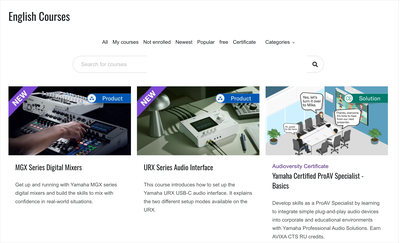
In the All Courses section, you can use filtering and search functions to find content specific to your interests.
Courses can be filtered by enrollment, popularity, certificate availability, or categories.
Typing keywords into the search bar can also help find courses more quickly.