
How to Sign In
Step 1

Step 1
Visit Audioversity Online, then select the "Sign In" button in the upper righthand corner of the screen.
Step 2
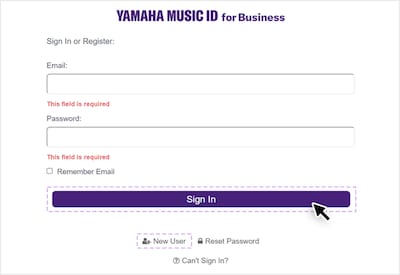
Step 2
Sign in or register to access Audioversity classes. You may choose one of the following:
- If you already have a Yamaha Music ID for Business: Enter your email and password, then click "Sign In", and proceed directly to Step 5.
- If you're a new user: Click "New User" to register for a new account. Continue to Step 3.
Step 3
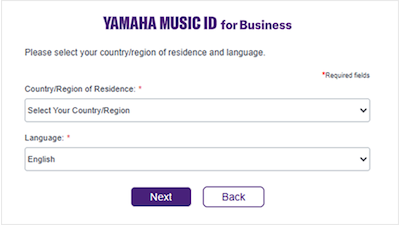
Step 3
Select your Country/Region of Residence from the top dropdown.
Then, choose your Preferred Language from the second dropdown.
Select "Next" to continue.
Step 4
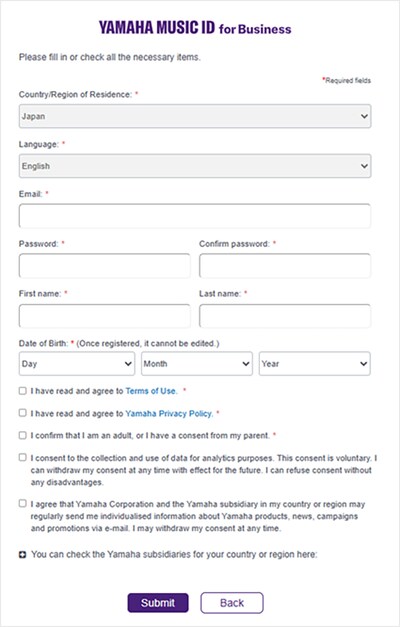
Step 4
Enter your personal information:
- Password
- Confirm Password
- First Name
- Last Name
- Date of Birth
Then click the boxes to agree to:
- Terms of Use
- Privacy Policy
- Age Confirmation
- Use of Data Analytics (optional)
- Marketing Preferences (optional)
Select “Submit” to continue.
Step 5
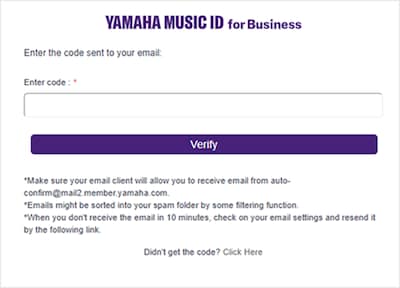
Step 5
To verify your account, you’ll receive an email with a code that can be entered on this page.
Enter the code into the box and select "Verify" to continue.
Step 6

Step 6
Once verified, you will be logged in and redirected to the Audioversity Online homepage.
Once back on the main homepage, a "Sign Out" button will appear in the upper righthand corner to confirm you’ve been successfully logged in.
Step 7

Step 7
Select your region and preferred language on the Terms of Use page.
Review the Terms and select "Agree" to continue.
Step 8
Step 8
Now you’re ready to enroll in your first course and begin building your audio expertise.